# Java & DFC Profile Management

dqMan comes with a profile management feature allowing users to define multiple profiles using different Java and DFC versions.

This can be used by Documentum professionals who need to work with many different Documentum Content Server versions/environments while using just one dqMan installation.

dqMan can be started with any profile, thus providing the respective Java and DFC environment for working with specific Documentum Content Servers.

## Managing Profiles

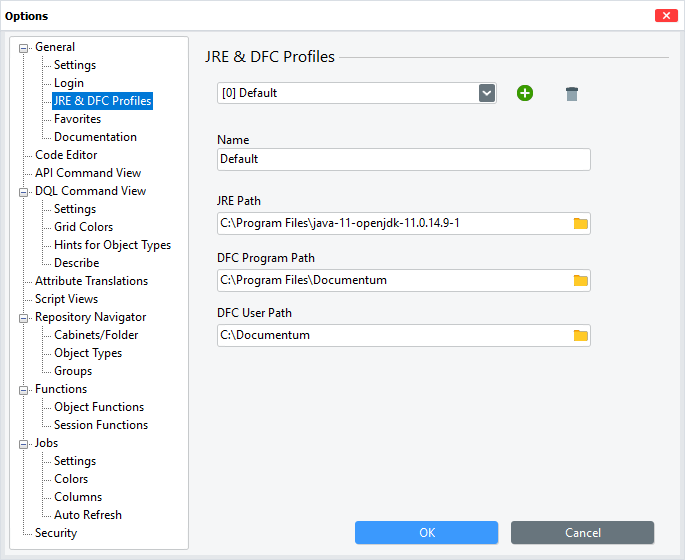
Profiles can be created, edited and deleted using the **JRE & DFC Profiles** page in the dqMan Options dialog (***Extras** men&#x75;**>Options***)

On the first launch after deployment dqMan will attempt to auto-detect the default Java and DFC installations present on the maching and if this is successful, it will create a profile called \[0] Default. To make sure that dqMan will be able to correctly auto-detect the Java and DFC installations on the local machine please follow the instructions in [#prerequisites](https://docs.dqman.com/22.2-0/dqman-overview#prerequisites "mention").

{% hint style="warning" %}
Profile *\[0] Default* is a reserved profile which is managed automatically by dqMan and is not recommended to be edited or deleted.\
Although editing this profile is not prohibited, it is recommended to be used only for troubleshooting purposes.
{% endhint %}

<figure><img src="https://3432063955-files.gitbook.io/~/files/v0/b/gitbook-x-prod.appspot.com/o/spaces%2Fr5rLyXOIwVDbZ9uEKPX7%2Fuploads%2FpIzrfSXjZuKHRcPJAiuv%2Fimage.png?alt=media&#x26;token=65864b7b-8ba6-49c1-98ed-8ebccae2f5cc" alt=""><figcaption><p>JRE &#x26; DFC Profile management page in dqMan Options</p></figcaption></figure>

<table><thead><tr><th width="219">Function</th><th>Description</th></tr></thead><tbody><tr><td><strong>Existing profiles list</strong></td><td>Selects the profile which is to be edited or deleted</td></tr><tr><td><strong>New Profile</strong> <img src="https://3432063955-files.gitbook.io/~/files/v0/b/gitbook-x-prod.appspot.com/o/spaces%2Fr5rLyXOIwVDbZ9uEKPX7%2Fuploads%2FBrUl5dnnIMpS53IhNQPV%2Fimage.png?alt=media&#x26;token=8ebccf78-9a99-4b11-9767-242b0e59d869" alt=""></td><td>Creates a new (blank) profile</td></tr><tr><td><strong>Delete Profile</strong> <img src="https://3432063955-files.gitbook.io/~/files/v0/b/gitbook-x-prod.appspot.com/o/spaces%2Fr5rLyXOIwVDbZ9uEKPX7%2Fuploads%2FQ6qd4vtbEmntyRFKJuRp%2Fimage.png?alt=media&#x26;token=dc4bafea-9483-4023-9ca9-e490e52ea21f" alt=""></td><td>Deletes the selected profile.<br>The user is prompted to confirm the delete action.<br><em>If you have deleted a profile inadvertently press Cancel to close the Options window, thus discarding the latest changes, including deletion</em></td></tr><tr><td><strong>Name</strong></td><td><p>Set a name for a newly created profile</p><p>OR</p><p>Rename the selected profile</p></td></tr><tr><td><strong>JRE Path</strong></td><td>Path to the installation folder of the Java Runtime Environment to be used for the current profile<br><em>See</em> <a data-mention href="../dqman-overview#prerequisites">#prerequisites</a> <em>for more information about supported Java versions</em></td></tr><tr><td><strong>DFC Program Path</strong></td><td>Path to the installation folder of the DFC to be used for the current profile<br><em>See</em> <a data-mention href="../dqman-overview#prerequisites">#prerequisites</a> <em>for more information about supported DFC versions</em></td></tr><tr><td><strong>DFC User Path</strong></td><td>Path to the DFC user folder<br>(the folder containing the <em>config\dfc.properties</em> file)</td></tr><tr><td><strong>OK</strong></td><td>Save changes to Java &#x26; DFC Profiles and close Options dialog</td></tr><tr><td><strong>Cancel</strong></td><td>Discard changes to Java &#x26; DFC Profiles and close Options dialog</td></tr></tbody></table>

## Loading Profiles

dqMan can be launched with any of the available profiles. It is also possible to run multiple dqMan instances using different profiles.

The recommended way for using profiles is to create custom dqMan shortcuts, with each shortcut used to load a specific profile:

1. *Hold **Alt** & drag* dqman.exe from your dqMan folder to the Desktop to create a shortcut
2. Rename the shortcut to something suggestive
3. Edit the shortcut's properties and append either of the following to the command line in the shortcut's **Target** field:

<table><thead><tr><th width="222">Argument</th><th>Example shortcut Target field</th></tr></thead><tbody><tr><td><code>-profile &#x3C;index></code></td><td><code>&#x3C;dqMan path>\dqman.exe -profile 2</code><br>Starts dqMan with the profile identified by index number 2</td></tr><tr><td><code>-profile &#x3C;name></code></td><td><code>&#x3C;dqMan path>\dqman.exe -profile "My Profile"</code><br>Starts dqMan with the profile named <em>My Profile</em><br><em>Hint: profile names need to quoted only if they contain spaces</em></td></tr></tbody></table>

To confirm the expected profile has been loaded, open ***Help>About*** and verify the profile name and Java and DFC information in the **About** window's **System information** section.

{% hint style="info" %}
If an invalid profile is specified to be loaded, dqMan will automatically fall back to loading the *\[0] Default* profile instead.\
A message is then displayed on startup informing the user that the specified profile is invalid and could not be loaded.
{% endhint %}

## Troubleshooting profiles and editing the dqman.properties file

dqMan saves all profile related information to the *%localappdata%\dqMan\Config\dqman.properties* file. Although it is not recommended to edit this file directly, it may be required to do so in certain situations.

{% hint style="danger" %}
We always recommend making a backup before editing any configuration file.
{% endhint %}

### dqMan fails to detect locally installed Java and/or DFC

if dqMan fails to automatically detect the default Java and/or DFC installed on the local machine it is usually due to either of these not having been installed as per their respective vendor's installation instructions, as outlined in [#prerequisites](https://docs.dqman.com/22.2-0/dqman-overview#prerequisites "mention"). We recommend following the instructions from the Prerequisites page and then restarting dqMan to allow it to correctly detect the default Java and/or DFC installations.

If it still isn't possible for dqMan to detect the default Java and/or DFC installations despite having followed the instructions outlined in [#prerequisites](https://docs.dqman.com/22.2-0/dqman-overview#prerequisites "mention") it may be necessary to edit or create the dqman.properties file manually. Please follow the below steps to edit/create the file manually:

1. Open the *%localappdata%\dqMan\Config\dqman.properties* file with your text editor\
   If the file does not exist, create a new file in your text editor and save it as *%localappdata%\dqMan\Config\dqman.properties*
2. Copy and paste the template dqman.properties file's content from [#template-for-dqman.properties-file](#template-for-dqman.properties-file "mention")into the text editor
3. Edit the paths from the template to match *your* Java and DFC installations
4. Save the *dqman.properties* file and start dqMan

### The default Java and/or DFC detected initially by dqMan has been removed/uninstalled later and now dqMan cannot start

If the Java and/or DFC auto-detected during dqMan's first start is later removed/uninstalled then dqMan will run into errors as it won't find the required prerequisites anymore. To reset dqMan's default profile and re-trigger dqMan's auto-detect functionality, follow the steps below:

1. Open the *%localappdata%\dqMan\Config\dqman.properties* file with your text editor
2. *Delete all lines* starting with`dqman.profile.....[0]=`\
   (pay attention at the \[0] (zero) index and do not delete other lines containing non-zero indices)
3. Save the file and start dqMan\
   dqMan should now auto-detect your newly installed Java and/or DFC instead of the previously uninstalled versions
4. If step 3. fails, fall back to [#dqman-fails-to-detect-locally-installed-java-and-or-dfc](#dqman-fails-to-detect-locally-installed-java-and-or-dfc "mention") above

### Template for dqman.properties file

Use the below template to create a new dqman.properties file if needed.

{% hint style="warning" %}
The below paths are only examples and *will need to be edited to match the actual paths* where the respective software is installed on the dqMan host machine
{% endhint %}

`dqman.profile.name[0]=Default`\
`dqman.profile.path.jre[0]=C:\Program Files\openjdk-11.0.14 dqman.profile.path.dfc.program[0]=C:\Program Files\Documentum dqman.profile.path.dfc.user[0]=C:\Documentum`
