> For the complete documentation index, see [llms.txt](https://docs.dqman.com/llms.txt). Markdown versions of documentation pages are available by appending `.md` to page URLs; this page is available as [Markdown](https://docs.dqman.com/veeva-vault-edition-26.1/session-window-vql-mdl-api-api-script-picklists-file-staging/file-staging.md).
# File staging
**File Staging in Veeva Vault is a temporary storage area used to upload, store, and manage files during data import and export operations.**
It acts as an intermediate workspace where users or integrations can place files before they are referenced in Vault Loader, the API, or other automated processes. Likewise, files generated during exports (such as document renditions or attachments) are stored in the staging area before being downloaded.
In short, File Staging enables efficient handling of high-volume file operations and supports smooth, automated interactions with Veeva Vault.
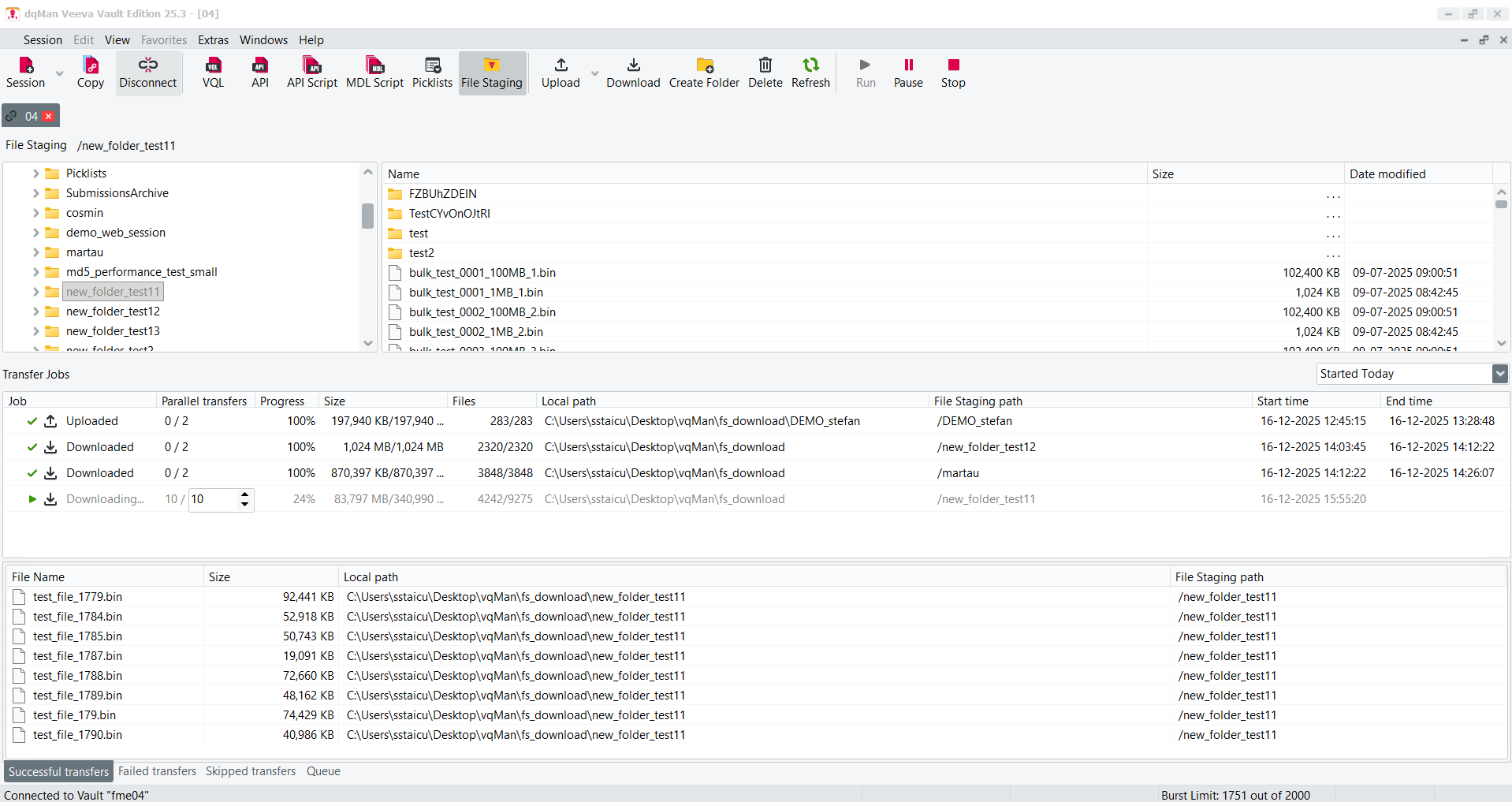
The new **File Staging** section in dqMan for Veeva Vault provides a user interface for browsing, uploading, downloading, and managing files and folders stored in Vault’s File Staging area. The functionality is designed to simplify high-volume file transfers and to give users full visibility and control over ongoing and historical transfer jobs.
***
### **File Staging Browser**
The upper section displays the full directory structure of the File Staging area, including the *Staged files* folder and all user-created subfolders. Users can perform the following actions directly from the toolbar or through the context menu:
* **Upload files or entire folders** into any File Staging directory
* **Download files or folders** from File Staging to a local path or to a server path
* **Multi-select** support for files and folders
* Full navigation with folder tree + file list views
This makes it easy to interact with both small and extremely large file batches.
***
### **Transfer Jobs Panel**
The central section shows all running, queued, or completed transfer jobs.\
Key capabilities include:
#### **Job Queue Management**
* By default, up to **2 active jobs** can run in parallel (the number of active jobs can be configured *Extras → Options)*
* Additional jobs are placed in a queue and start automatically when a slot becomes available
#### **Job Types**
* **Upload jobs**
* **Download jobs**
Each job displays:
* Number of parallel transfers
* Progress
* Total size
* Number of files transferred
* Local path
* File Staging path
* Start and end timestamps
#### **Job Retention**
* Jobs are stored for up to **7 days**
* The default retention period is **1 day**
* Retention can be changed from *Extras → Options*
#### **Filtering & Management**
* Users can filter job history based on time range or status
* Jobs can be **deleted** manually
* Multi-select is supported
#### **Automatic Job Splitting**
* Upload and download operations that involve a large number of folders can automatically be split into smaller jobs. This improves reliability and prevents extremely large transfer jobs from overloading the transfer queue.
* When the number of folders exceeds a defined internal threshold, dqMan automatically creates multiple smaller jobs and processes them sequentially.
* This can be edited in File staging option section
#### **Error Handling and Visibility**
* dqMan provides enhanced visibility for errors that occur during transfer operations.
Users are notified when errors occur during:
* file scanning
* upload operations
* download operations
* transfer execution
All errors are recorded in the transfer job details, allowing users to review issues and identify failed files.
#### **Enhanced Transfer Details**
During upload and download operations, users can view:
* total number of files
* total transfer size
* number of folders included in the transfer
This provides better visibility into the scope and progress of transfer operations.
***
### **Upload Configuration**
**Parallel Transfers / Thread Control**
dqMan allows up to **10 parallel threads** per job for faster uploading and downloading.
* The default number of threads is **2**
* Threads can be adjusted **during job execution**, allowing dynamic performance tuning
**Configurable Burst Limit**
* The burst limit used during transfer operations is now configurable.
Users can adjust the burst limit between:
**20% – 100%**
* Increasing the burst limit allows dqMan to process more transfer requests concurrently, which can improve performance for large transfers depending on the vault configuration.
**Configurable Threshold for Resumable Uploads**
* Users can configure the file size threshold that triggers resumable uploads.
* Default value: **20 MB**
* Maximum allowed value: **50 MB**
* The accepted value depends on the vault configuration used by dqMan.\
If an unsupported value is configured, uploads of large files may fail.
**Configurable Upload File Part Size**
* Files uploaded to the vault can be split into smaller parts during transfer.
Upload file part size settings:
* Default value: **19 MB**
* Maximum allowed value: **25 MB**
* The accepted value depends on the vault configuration.\
If an unsupported value is configured, uploads of large files may fail.
***
### Transfer Log Export
In the lower section, users can review individual transferred files for **successful**, **failed**, and **skipped** operations.
* **Successful transfers** represent files that were processed and transferred without errors.
* **Failed transfers** indicate files that could not be transferred due to errors (for example, connectivity issues, permission problems, or validation errors).
* **Skipped transfers** include files or folders that were **not transferred because they already exist at the target location** (i.e., they were previously downloaded or uploaded and therefore did not require reprocessing).
#### Additional capabilities
* Export logs for **successful**, **failed**, or **skipped** transfers via the context menu
* Useful for **audit purposes**, **troubleshooting**, or **bulk-processing summaries**